Refine items with Item Assist
|
|
 All AI-generated content — including items, rationales, and references — should be carefully fact-checked by human subject matter experts. AI-generated inaccuracies can be more difficult to detect than human errors because they often lack the typographical mistakes and uncertainty cues that are typically associated with human errors.
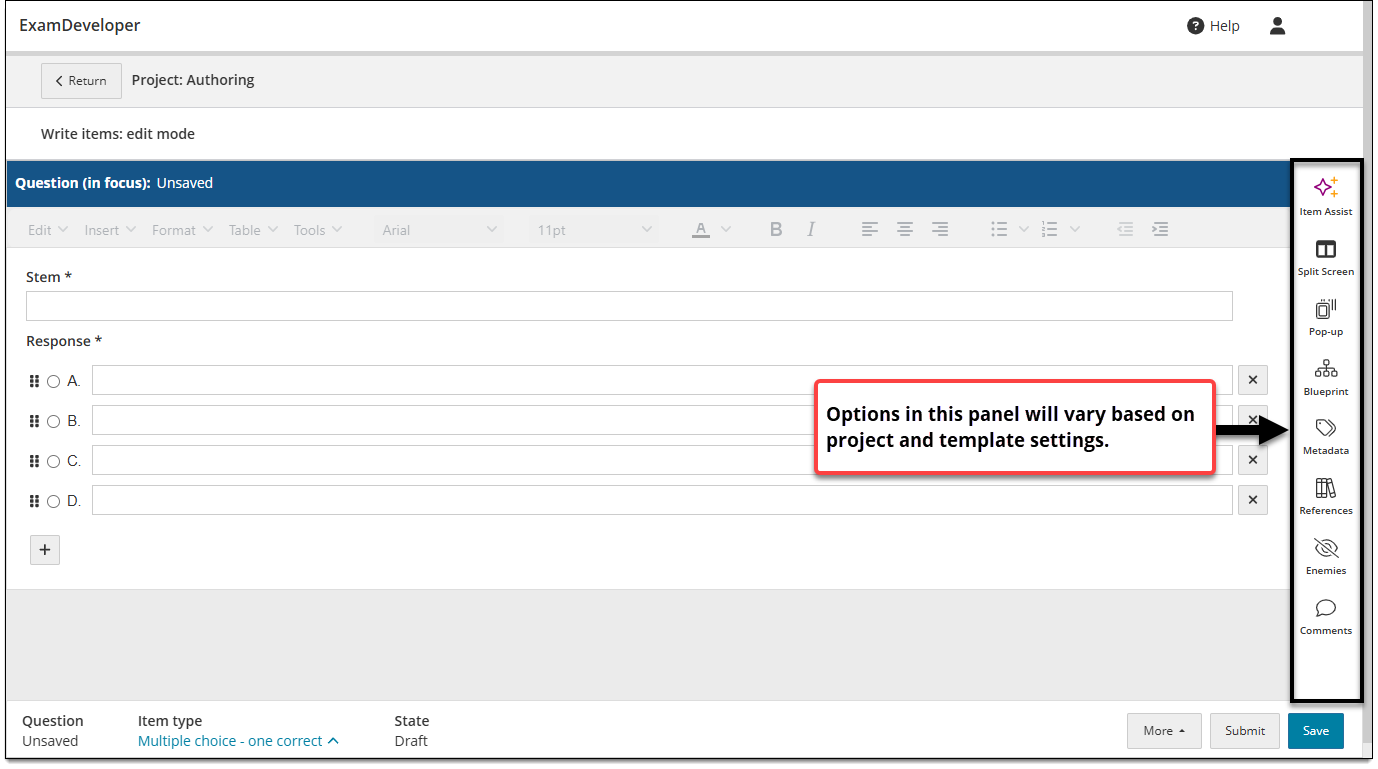
Authors and reviewers can use Item Assist to refine question content, response options, and rationales (if rationale metadata is configured for the project). When an item type is configured and enabled for Item Assist, both manually-authored items and AI-generated items of that item type can be refined.
Refine an item
|
|
- Open an existing item to edit.
 Refinement is only available when the item is in Edit mode.
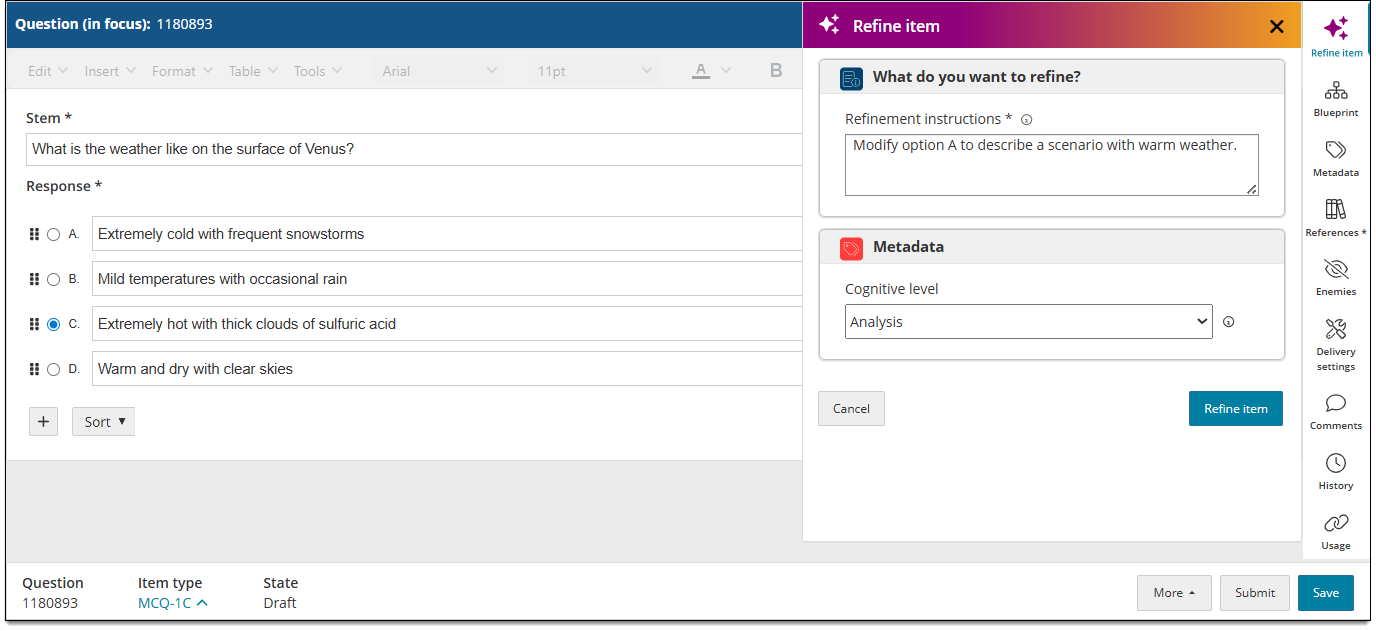
- Click Refine item in the item settings panel
 .
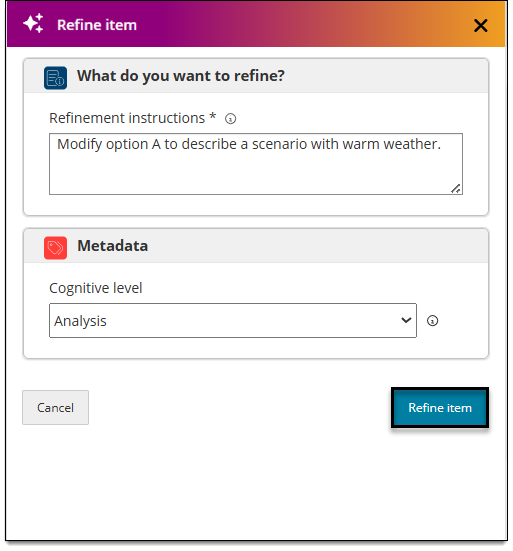
. - In the Refinement instructions text box, input a text prompt describing what you want to refine. For best results, be as specific as possible.
- For example, you can request that a certain response option is updated to reflect a certain topic (depending on your project configurations), make an option shorter or longer, add a scenario to the item stem, apply a certain style guide, etc. Or, if "Rationale" metadata is configured for your project, you can provide specific instructions such as "Provide a rationale for both the distractors and the key.", or "Provide a more detailed rationale for the key.".
- If metadata is configured and enabled in Item Assist for the project, the values can be changed as part of the refinement. For example, you can select a different cognitive level (such as "Application" instead of "Knowledge") for a "Cognitive level" metadata field.
- Do not select or change anything in the Metadata section unless you are changing the option for that metadata (such as selecting "Application" instead of "Knowledge").
- If metadata is not enabled for the project, the Metadata section is not shown in the Item Assist panel.
- An "Unused metadata" notification will appear at the top of the panel if one or more metadata configured for the project are not yet connected to Item Assist. If needed, contact your project manager to connect the required metadata.
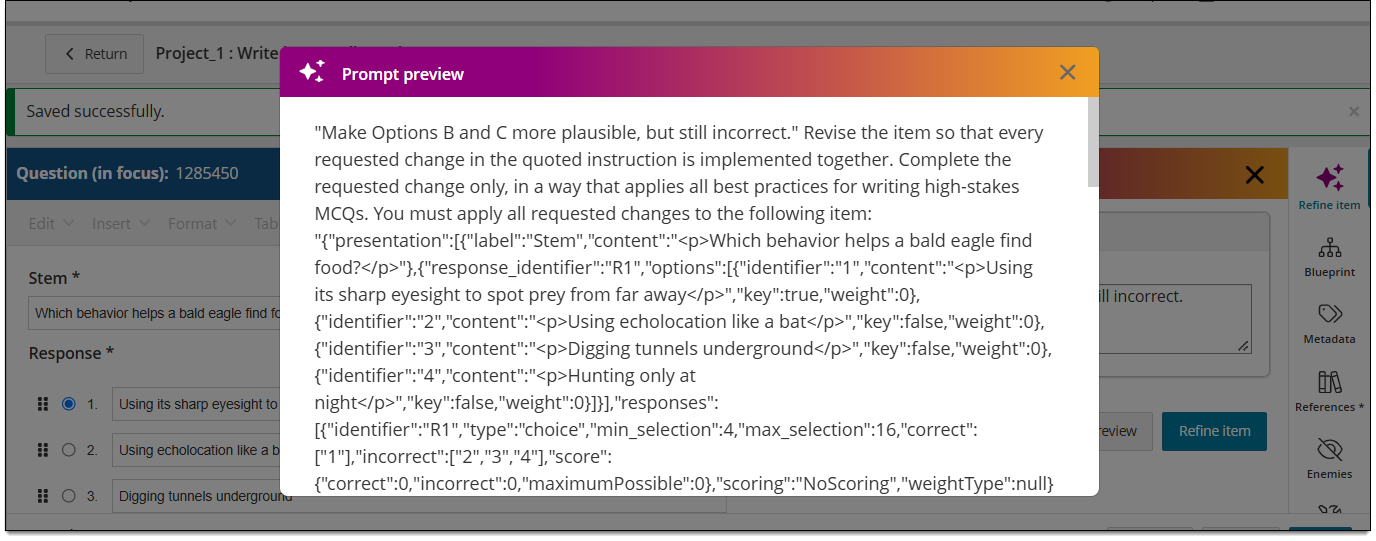
- (Optional) Click Prompt preview. A read-only modal is displayed, showing you the complete and exact refinement prompt that will be sent to Item Assist for refining the item. Click X to close the preview.
- Click Refine item.
- A pop-up window displays the current version of the item next to the refined version.
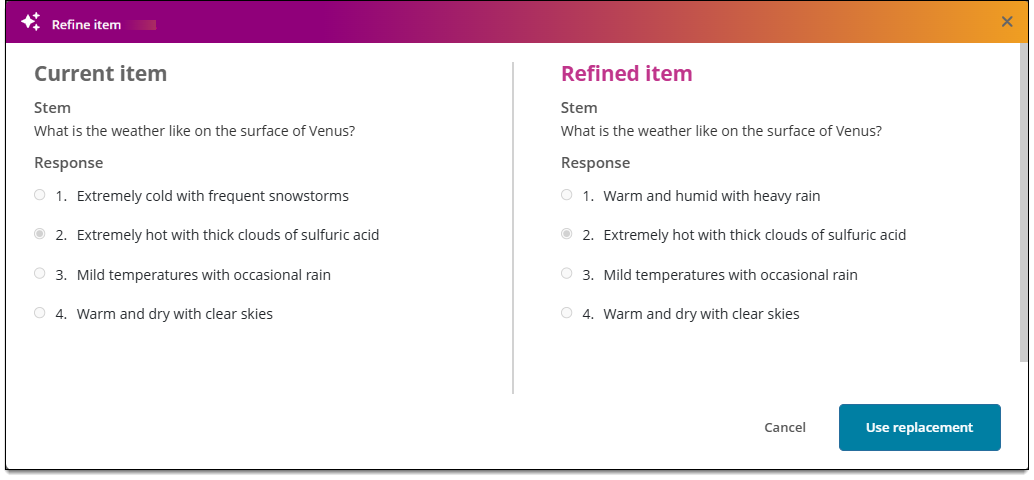
- If you are satisfied with the refined version, click Use replacement. This replaces the item's existing content with the refined content.
- If you are not satisfied with the refinement, click Cancel and repeat steps 2-4 to generate another refinement.
- Once the desired content is achieved, click Save in the lower-right corner of the page.
- A new revision of the item is created. Revisions generated using Item Assist will be marked with a sparkle icon
 in the History panel.
 - The rationale for the item key (if configured for the project) will also be updated. The updated rationale will be shown in the Metadata panel once the new revision is saved.
- A new revision of the item is created. Revisions generated using Item Assist will be marked with a sparkle icon
- If the item is part of a review workflow, click Submit.
- Submitting an item sends it to the next assigned reviewer or stage in your project workflow. You will no longer be able to edit this item unless it is sent back to you.